TTL debugging techniques

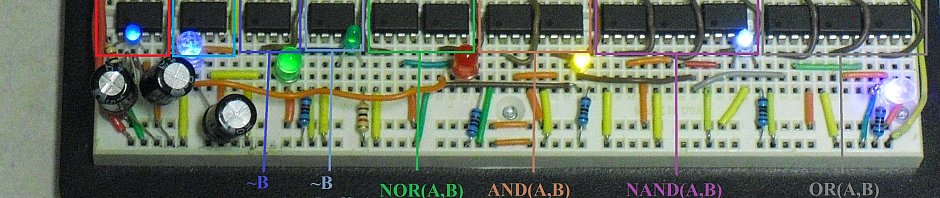
It happens all the time, even to experienced professionals. You wire up a digital logic circuit, but it doesn’t work the way you expect. Here are some of the most common reasons why a digital circuit might not work, along with tips on how to diagnose the problem.

Check the chips’ power…

  • Is the proper power supply (typically 5VDC) connected to each chip?
  • Is Ground connected to each chip? Is it at 0VDC?
  • Are power and ground connected to the correct pins?
  • Is the power reasonably clean? (Check it with an oscilloscope.)

Check for common wiring mistakes…

  • Are any pins on the chip left unconnected? If so, should they be?
  • Are any of the chip pins bent underneath it, instead of making contact?
  • Are enable pins connected and tied to the correct value?
  • Are any outputs shorted together? (This is a Bad Thing™)
  • Are any outputs tied to power or ground?

At this point, take a logic probe and start tracing signals on chips that seem to be misbehaving. Follow the “contract model” of diagnosis: You provide power, correct signals, correct power, and an output of sufficiently high impedance, and the chip performs the correct function. If it doesn’t, and your conditions are OK, replace it!

Posted in Design, Digital, EET205, EET325, Electronics, HOW-TO | Leave a comment

Rediscovering Vacuum Tubes, Part 1

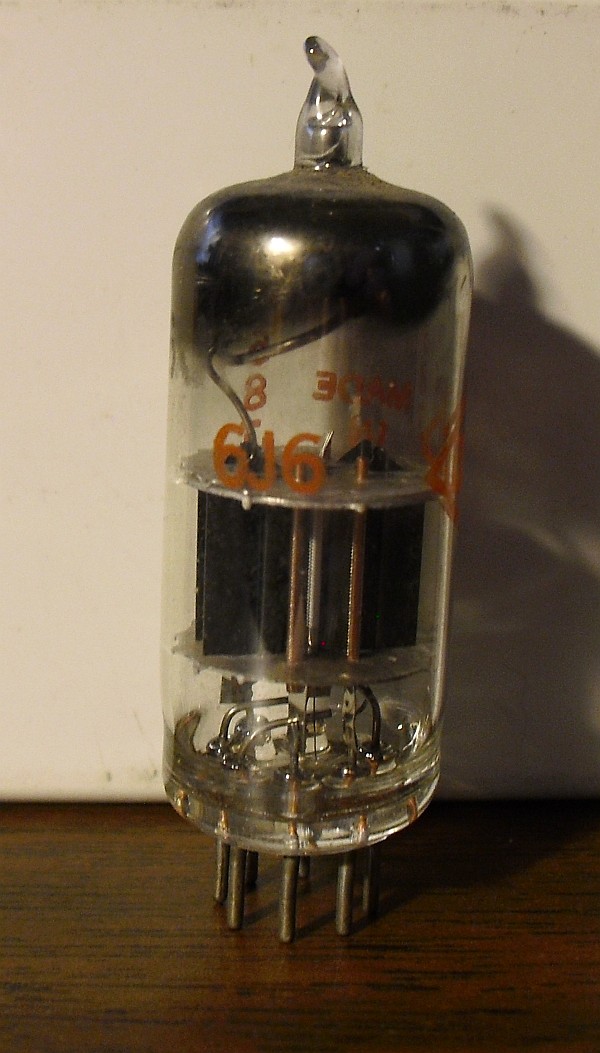
A while back, I bought several 6J6 vacuum tubes (dual triodes with a common cathode) on eBay, thinking that it would be an interesting project to wire them up and make an amplifier or something from them.

A 6J6 dual-triode vacuum tube (click for larger.)

Vacuum tubes work via the “Edison effect,” also known as thermionic emission. A hot filament (or a negatively-charged plate heated by a filament) will emit electrons into a vacuum. The flow of electrons can be increased and directed by drawing them toward a positively-charged plate. This combination of filament, vacuum, and plate forms a vacuum diode (since electrons will readily flow from the cathode to the plate, but not the other way around.)

With the addition of a negatively-charged grid between the filament and plate, the flow of electrons can be regulated by a relatively small signal. This allows amplification of an electrical signal, and makes possible amplifiers, oscillators, and even digital logic.

There is a nonlinear relationship between grid voltage and plate current, though. Some investigation was called for. The 6J6 is a dual-triode device, with a heated cathode, two grids, and two plate anodes. The two sections can be connected electrically in parallel (the grids tied together and the plate sections tied together.) I decided to initially test it in this configuration. Varying the grid voltage while measuring the plate current, I came up with the following performance graph:


Plate current as a function of grid voltage, for a 6J6 at 50V plate voltage. (Click for larger.)

The anomaly at roughly 0.5V grid voltage bears further investigation. While decreasing the grid voltage systematically, the plate current seems to have jumped quickly from about 4.4mA to 5.9mA. My guess is that the increasing current in the tube caused the dynamics to somehow shift to another mode of operation. I suspect that slowly decreasing the grid voltage may uncover a hysteresis curve.

Perhaps this could even be used as a way to store a single bit of memory. If so, this has amazing, profound implications for the future of tube-based computing!

This post is dedicated to the memory of my grandfather, Millard C. Carr, who would have been 95 years old today. We miss you, Granddad.


Posted in Analog, Digital, Electronics, HOW-TO, Nostalgia, Power, Science | 4 Comments

Freestylin’

Just about the only thing better than a nice cold soda is a nice cold free soda. It’s even better when it’s a nice, cold, custom-selected, free soda from one of the new Coke Freestyle vending machines.

A Coke Freestyle machine. (Click for larger.)

But perhaps I should explain about the “free” part.

Since I worked an earlier-than-usual schedule today, I was able to make a Geek Pilgrimage to Moe’s Southwestern Grill in Suburban Station. I’m not usually one for authentic Tex-Mex (I’m sure it’s very good quality, but the spices would kill me). This particular Moe’s, though, had one of those new Coke Freestyle custom soda vending machines. I’d seen it through the store window while passing by after hours and had meant to try it. I researched it online and found that it custom-mixes each drink — not only from syrup, CO2 and water like normal soda fountains, but from an inkjet-printer-like assortment of dozens of flavors that it can mix in over a hundred combinations.

I stopped by Moe’s today and ordered a drink. When I got to the machine, though, most of the selections were grayed out — empty. This was unusual; I wouldn’t have been surprised if one or two were sold out, but it seemed that every good drink was out of stock.

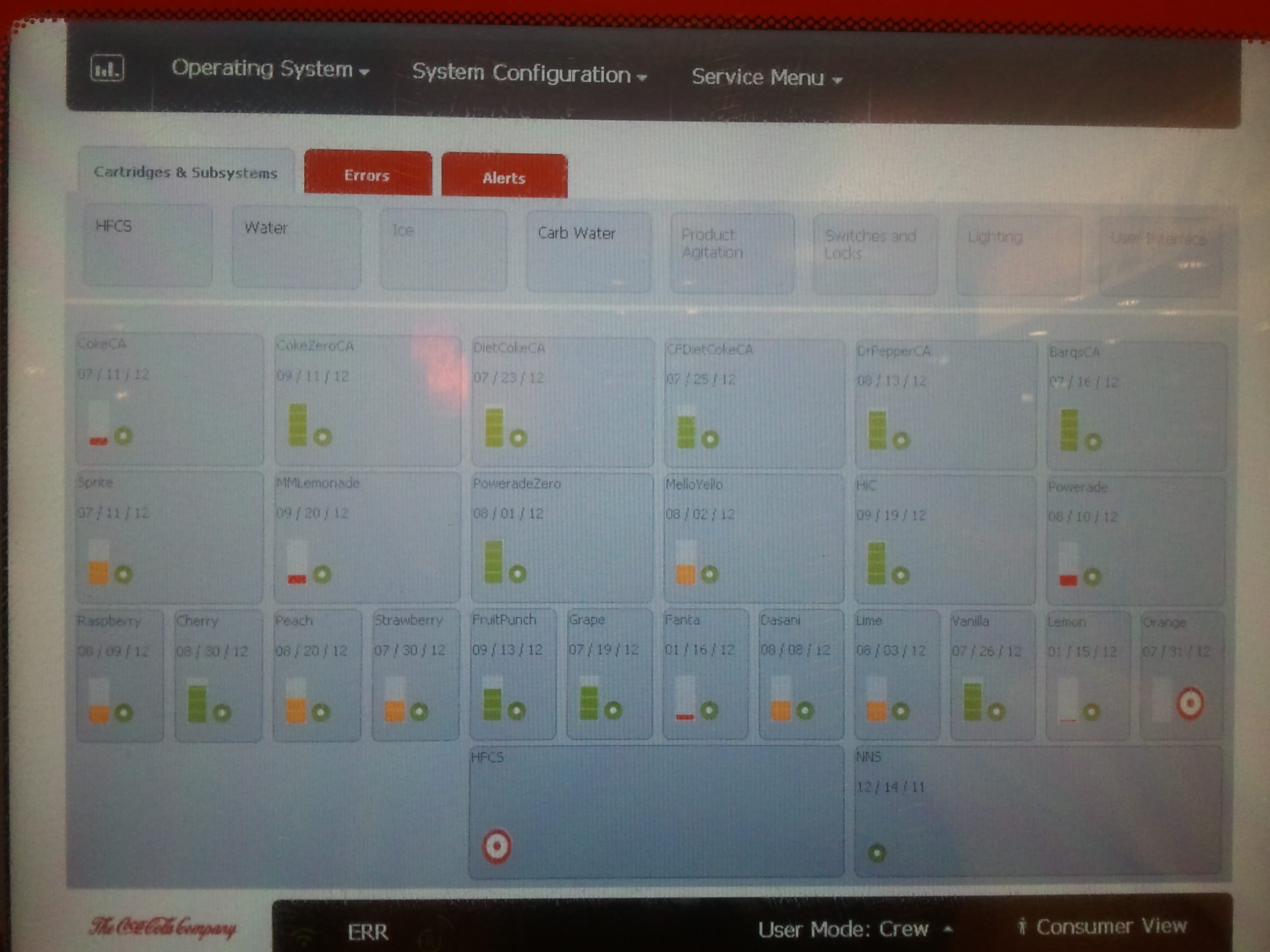
This is the part where it pays to be a geek. I’d read about these machines online and found a video describing an Easter egg in the “Water” menu — a secret way to pull up the maintenance menu. I tried it, and it worked.

Surprisingly, the machine seemed to have enough syrup for Dr. Pepper, Coke, Barq’s, and several other good drinks. What it didn’t have, according to the supply screen, was “HFCS” (High Fructose Corn Syrup.) AHA. No sweet stuff == no way to make any of the good drinks!

The "secret" maintenance screen, showing a lack of HFCS. (Click for larger.)

The shift manager who was looking at the machine with me checked in the back, and said that it had a full box of HFCS. Apparently nobody had told the machine this, though. I poked around a bit more and found a resupply menu. A quick reset later, and the consumer menu was lit up correctly once again. The manager, grateful for the help, let me have my drink on the house. I’ve never enjoyed a Fanta Lime soda this much before. Maybe that’s because I’ve never had a Fanta Lime soda before.

It’s good to be a geek.


Posted in Current Events, Digital, Digital Citizenship, Reviews | 2 Comments

An Introduction to Programming: Lesson 00

Computer programming is increasingly becoming an essential skill in many professions. Computers are one of the most powerful and useful tools available to us, and the ability to use them to solve problems is an important one when working in any of the STEM (Science / Technology / Engineering / Math) disciplines.

More importantly, though, programming can be fun!

Here’s a quick introduction, presented as a series of lessons that will get you started writing programs for your own computer. I’ve chosen to use FreeBASIC as the programming environment for several reasons, including ease of use, versatility, and low cost (meaning, no cost). While languages like C are more widely used in industry, FreeBASIC lends itself quite well to a “C-like” style of programming. Transitioning to C or another similar language would be mostly a matter of learning different syntax.

To write and run a program, you’ll need to:

  • Download and install FreeBASIC;
  • Start up FreeBASIC
  • Write a simple program or two (which I’ll provide, for now); and
  • Click a button to compile and run the program.

Downloading and installing FreeBASIC:

  • Click here to download a copy of the FreeBASIC installer.
  • Once it’s downloaded, run it and click through the prompts. (The default choices are fine.)
  • That’s it! On to the next step…

Starting up FreeBASIC:

  • Double-click on the FBIDE icon on your desktop.
  • (I told you it was easy.)

Writing your first program:

  • The traditional first program is a “Hello, World” program — one that simply prints “Hello, World.”
  • Click on the “New” icon at the upper right corner of the FreeBASIC program window (or click on File, then New.)
  • Type in the following:
    print “Hello, World!”
    sleep 5000
  • Click File -> Save, and give your program a name.
  • Press F9 to compile your program (translate it into something your computer can understand) and run it.
  • A new window with the phrase “Hello, World” should appear for five seconds, then disappear.
  • Congratulations — you just wrote a computer program!

Getting it to do more

  • The “Hello, World” program is nice and all, but it’s not really a fitting task for a computer capable of billions of calculations per second.
  • Why not have the computer add up all of the numbers between one and one million? (Don’t worry — it won’t take long.)
  • Click File -> Close, then File -> New. (Working with computer programs is really just like working with documents in Word and similar programs.)
  • Enter the following text in the window. (We’ll cover what this means in later lessons.)
    dim as ulongint x, total
    total = 0
    print “Adding the numbers…”
    for x=1 to 1000000
    total = total + x
    next x
    print “The total is: “;total
    sleep 10000
  • Click File -> Save, give the program a name (maybe “number sum” or something), then press F9.
  • You should quickly get the answer: 500000500000.

The next lesson will cover how to get started writing your own BASIC programs.


Posted in Coding | Leave a comment